.svg?fit=max&auto=format&n=mg7j3j61cBmODq_w&q=85&s=9d6b9cab54b8d7683318a9eec2df333d)
.svg?fit=max&auto=format&n=mg7j3j61cBmODq_w&q=85&s=25c26e62fec62cbde9a4e8913d45aadf)
Set the interview requirements
You configure screening in Step 5 of the job wizard. The AI interview requirements are the instructions the interviewer follows with each applicant.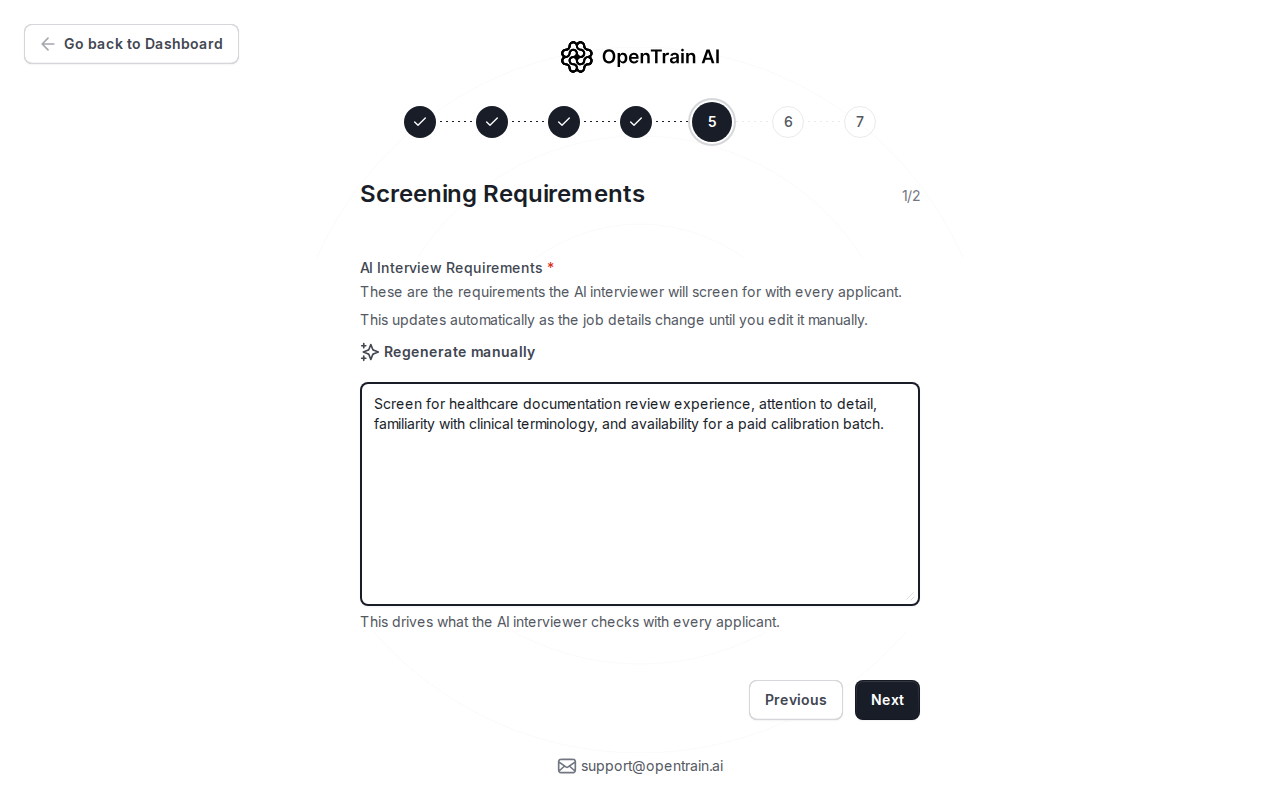
- credentials or domain experience to verify;
- tools, data types, or task types the candidate should know;
- availability, timezone, or workload constraints;
- any role-specific questions you want answered before proposal review.
Choose the screening depth
Use the second screening step to set the expected experience level and turn on the screening signals that matter for this job.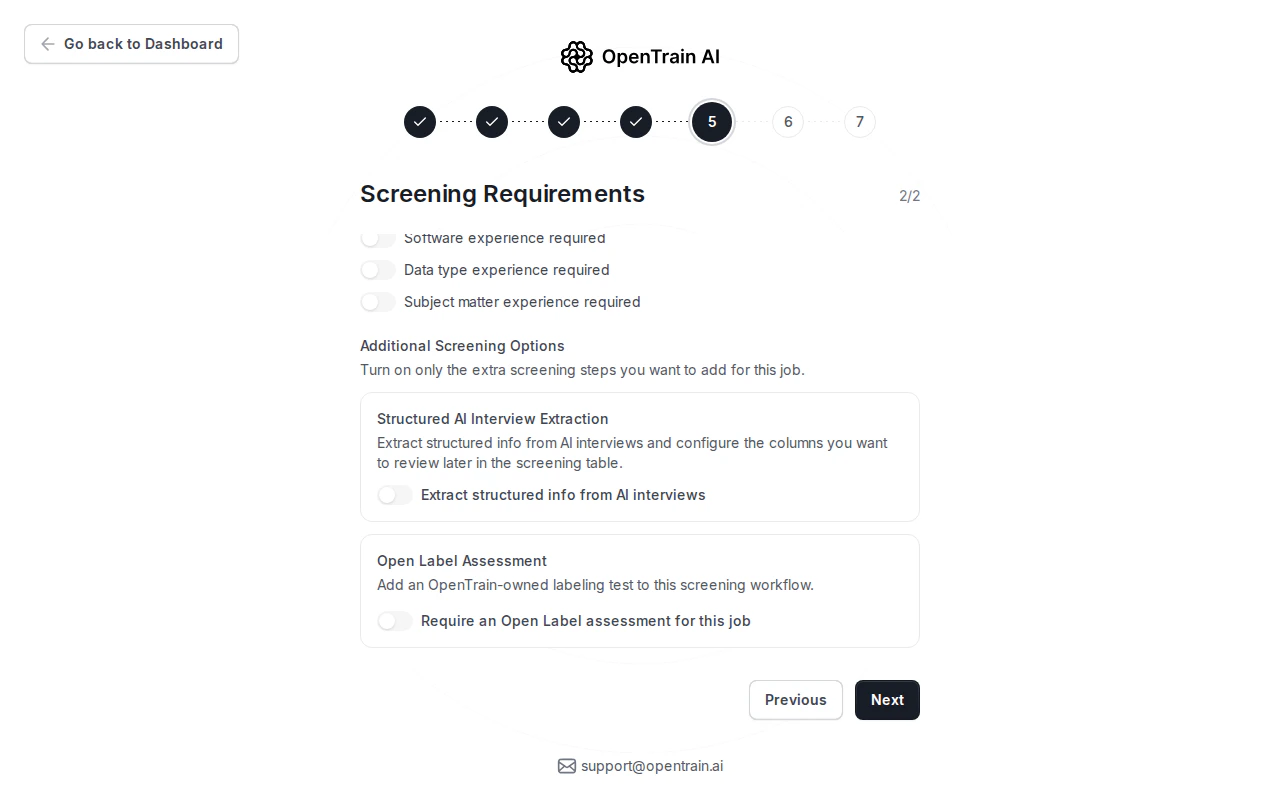
What candidates do
When a candidate starts a proposal for a screened job:- They answer the AI interview questions before submitting the proposal.
- The interviewer asks for the evidence you configured.
- Required answers are captured in a structured format.
- The candidate submits the proposal after the interview is complete.
Where you review answers
Screening answers appear in proposal review and folder-level screening. Use them to compare applicants by the same fields instead of reading every proposal from scratch.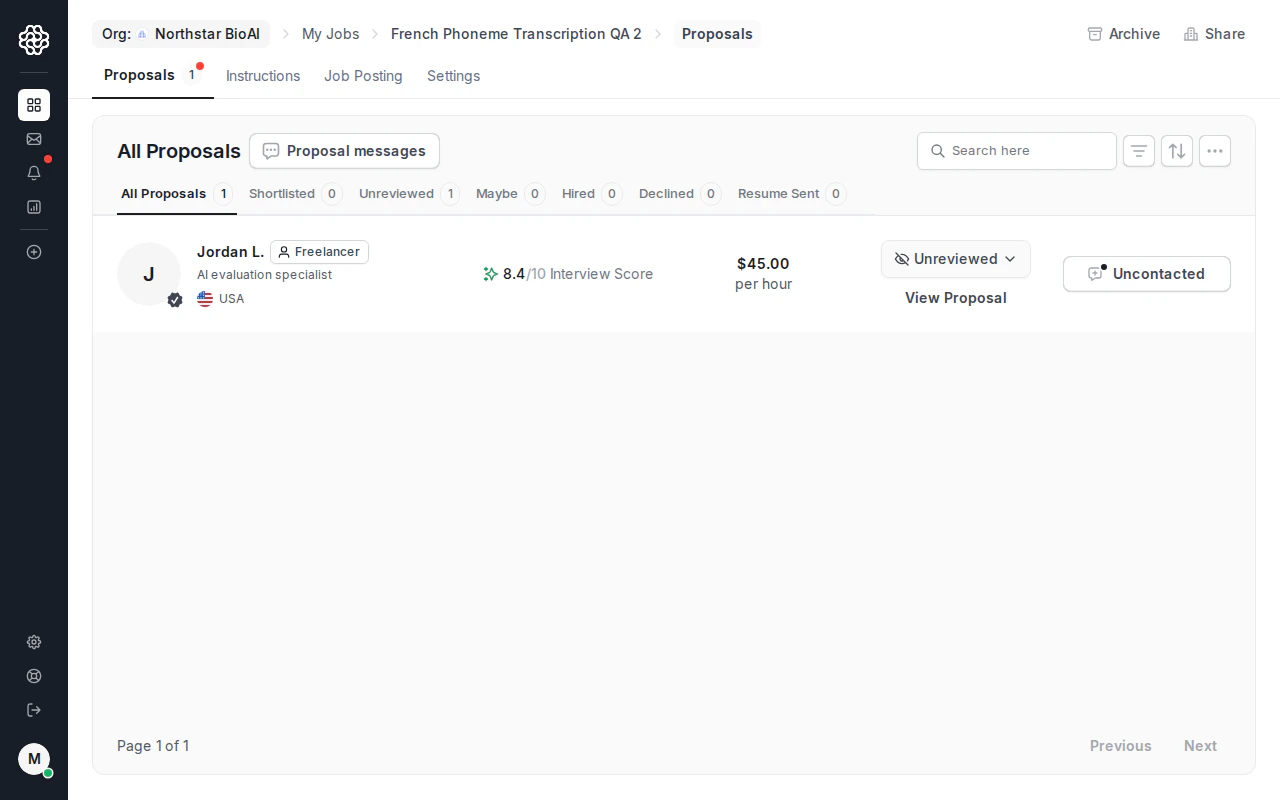
Export screening data
If CSV export is available for your folder:- Open the folder.
- Go to Screening.
- Apply the filters you want reflected in the export.
- Click Export CSV.